A seamless carousel can turn one long visual explanation into a sequence people can swipe through. The hard part is the seam: a word, face, or important object may be cut in half when the image becomes slides.
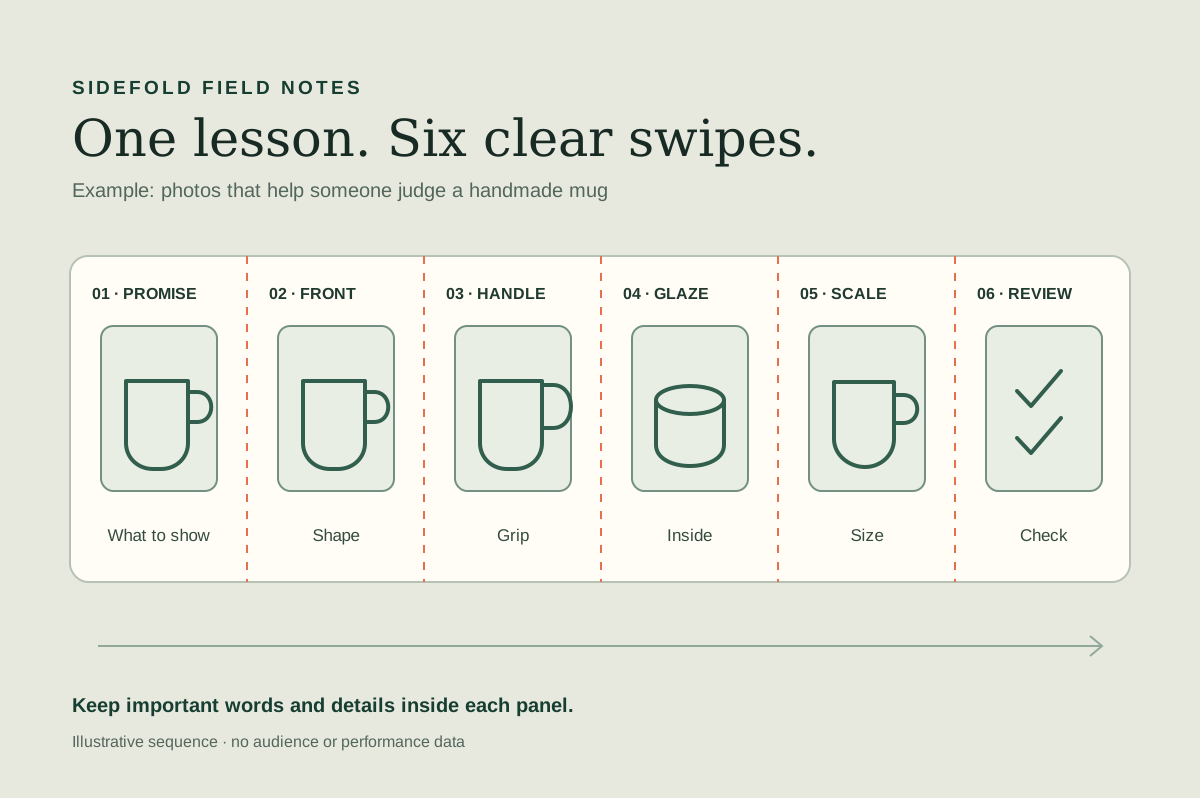
This guide uses an illustrative ceramics lesson: four steps for photographing a handmade mug. The example is a planning exercise, not a customer campaign or performance result. The diagram shows where each step sits before the image is cut.
01
Give each swipe a job
Write the lesson as a sequence before opening a design tool. For the mug example, slide one promises a useful result: “Four photos that help someone judge a handmade mug.” The next slides show the front, the handle, the inside glaze, and a scale view in a hand. A final short prompt can ask the reader to review their own listing.
That plan has five or six distinct beats. If you only have one photo and a sentence, one clear post may serve the reader better. If you need a complex diagram with labels across the whole canvas, offer a separate accessible text explanation as well.
1. Promise the task.
2. Show the front view.
3. Show the handle detail.
4. Show the inside glaze.
5. Show the mug in a hand.
6. Give a review prompt.
02
Build one wide image with safe seams
Choose a slide shape, then create one canvas made of equal-width panels. Put each heading, photo, and instruction comfortably inside its panel. Let background color or a nonessential line cross a seam; keep faces, product details, and words away from it. The diagram above uses vertical rules to show the cuts, not a claim about Instagram’s final crop.
Use images you made or have permission to publish. Keep text short enough to read at phone size. For the mug example, “Show the handle from the side” works better on a slide than a paragraph about every camera setting. Put the fuller explanation in the caption or a linked guide. The W3C image guidance recommends text alternatives that convey the information in meaningful images; the same principle is useful when reviewing each slide’s message.
Save the editable source. You will need it if the cut lands on a word or Instagram presents the final slides differently from your design preview.
03
Split the image in swipe order
- Open the Sidefold Instagram grid maker and choose Swipeable carousel.
- Upload the completed JPG, PNG, or WebP source image. The current tool accepts files under 25 MB and processes them in your browser.
- Set the number of slides and choose portrait or square. The current tool offers two to ten slides.
- Inspect every cut in the preview. If an important detail is divided or the first slide lacks context, revise the source image and upload it again.
- Download the numbered PNGs. In carousel mode, the files run from left to right: slide 01 is first.
The splitter centers and crops the source to the selected combined shape before cutting it. That means an extra-wide or extra-tall source may lose its outer edges. Keep a little breathing room at both ends and inspect the exported files, not only the assembled preview.
04
Proof the post in Instagram
Add the numbered slides to a single Instagram post in order. Review the app draft before sharing: look at the first slide in the feed preview, swipe through every join, and read the caption with the images. After publishing, open the live post on a phone and check the same route again. Sidefold controls the exported cuts; Instagram controls the display of the post.
Write a caption that repeats the practical takeaway in text. For this example, list the four mug views and explain what each reveals. If your images carry information that the caption does not, provide appropriate image descriptions where your publishing workflow allows them. The W3C guidance on informative images is a useful check for what a description should convey.
If the carousel leads to a longer resource, name the destination precisely. “Get the five-shot checklist” is clearer than “link in bio.” The free PDF guide covers building that resource, and our link order guide helps connect the post to its page.
05
Use separate slides when the seam adds no value
A seamless background can make the sequence feel connected, but it cannot turn a weak lesson into a useful one. If every step needs a different crop, photo, or amount of text, design separate slides instead of forcing them into one panoramic image. You can still keep the same color, type, and sequence.
A profile grid solves a different problem: it spreads one image across separate posts. If that is your goal, use our grid posting-order guide. For a swipe lesson, the carousel keeps the explanation together in one post.
06
Common questions
Is a carousel the same as a profile grid?
No. A carousel keeps several slides inside one post in swipe order. A profile grid uses separate posts that temporarily form a larger image on your profile.
Can the splitter add headings or product links?
No. Sidefold's splitter cuts an image you have already designed. Put headings and other essential information in the source image, and place a usable destination link in a surface that supports links.
Will a seamless join look identical in Instagram?
The tool previews its own cuts, but the final display belongs to Instagram and can change by surface or device. Inspect the draft and the live post in the app.
Draft the lesson before the canvas.
Write one sentence for each slide, place important details inside the panels, then inspect the exported sequence on a phone.