A Google Doc can look like a finished ebook while hiding problems that appear only after export: a chapter title is just enlarged body text, a contents link points nowhere, or an image overwhelms a phone screen. Format the source for structure first, then proof the files readers will actually open.
This is a production checklist for an ebook whose words and order are already drafted. If you are still deciding what to write, start with our short ebook planning guide. The sample below is hypothetical: a practical guide to photographing handmade products at home.
01
Give every chapter a real heading
Use the document title for the book title, Heading 1 for chapter titles, Heading 2 for sections, and normal text for paragraphs. Keep the same hierarchy throughout. “Chapter 3: Window light” should have the same style as the other chapter titles, even if you later change its appearance. Google’s Docs heading guide explains how to apply paragraph styles and how a table of contents links to headings.
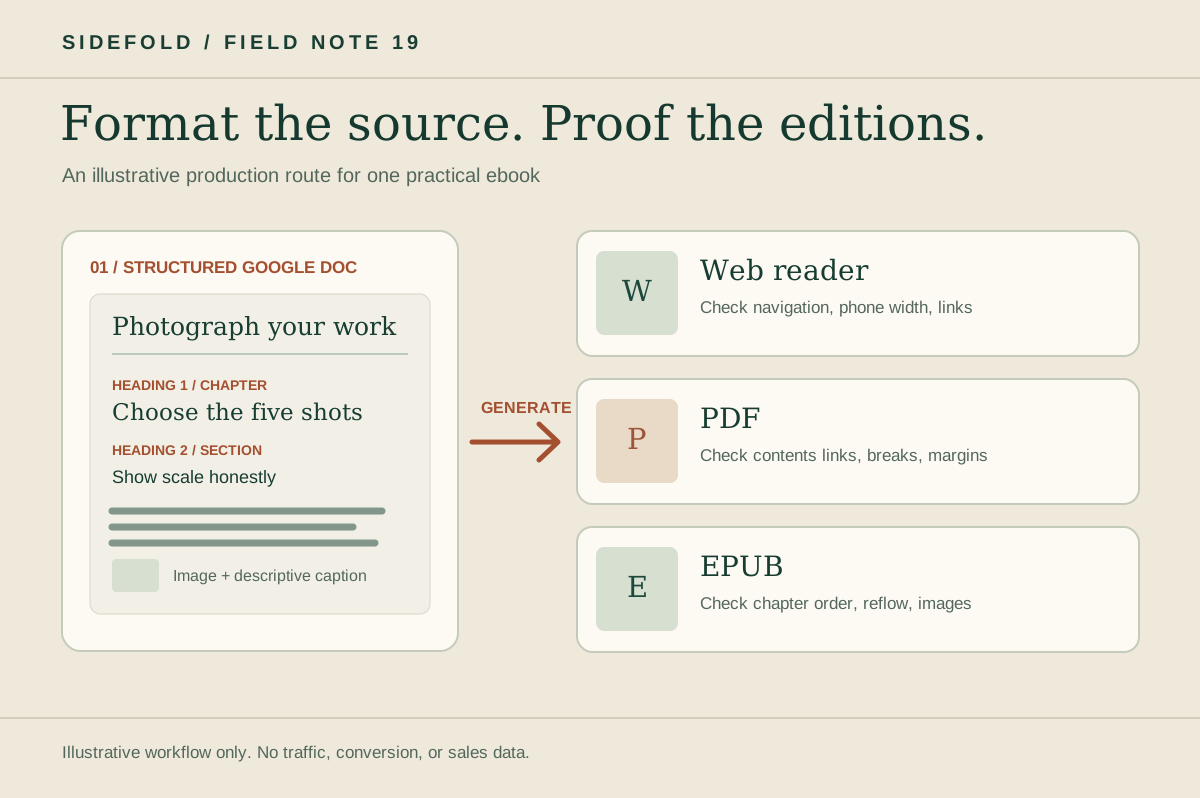
Title: Photograph your work at home
Heading 1: Choose the five shots
Heading 2: Show scale honestly
Normal text: the instructions and example
Open the document outline and scan the chapter order. If a chapter is missing, inspect its style instead of adding manual spaces or making the font bigger. A contents page can help the Docs version, but refresh it after changing headings. Treat it as a check on structure; inspect the navigation generated in every finished edition.
02
Make the content work without a fixed page
Use actual lists for step sequences. Remove strings of blank lines used to push a heading onto the next page. Replace “click here” with link text that names the destination. Keep tables simple; if a comparison is too wide to read on a phone, turn it into shorter sections or a clearly labelled list.
For each image, check that you may publish it, keep the file large enough to remain legible, and write a caption that explains why it is there. Add alternative text where it conveys information; Google’s accessibility guidance shows how to do that in Docs. If an image contains essential instructions, repeat them in nearby text and verify the description survives your publishing path.
Do not force an EPUB to match a PDF page. The W3C EPUB reading-system specification describes reflowable layouts, where a reader’s device and settings can change line breaks. A page break that looks tidy in Docs cannot replace a chapter heading or a reading test.
03
Run a source-document check
Read the document from beginning to end once without editing the prose. Check structure and links only. The diagram above follows this path: one structured source becomes three editions, each with a different proofing check. It is an illustrative production workflow, not performance data.
For the sample photography guide, a reader should be able to jump from “Choose the five shots” to “Set up window light” without a heading that accidentally contains a paragraph. Try the outline yourself before generating anything.
04
Proof the web reader, PDF, and EPUB separately
Sidefold’s ebook maker can take a structured Google Doc and generate a web reader, PDF, and EPUB. Its source workflow carries headings, images, lists, links, and text emphasis into those editions. This saves repeated formatting work; it does not guarantee that each result reads well. Review the output before sharing it.
| Edition | Check first | Then check |
|---|---|---|
| Web reader | Chapter navigation and phone width | Images and external links |
| Contents links and page breaks | Margins, captions, and readable type | |
| EPUB | Contents and chapter order | Text resizing and images on two screen sizes |
Open every link in the generated editions. Change the font size in an EPUB reader, rotate a phone, and inspect the longest chapter title and widest image. If something fails, correct the Google Doc and generate again. Keep the source as the place where text corrections are made.
05
Publish the version you have checked
Write a storefront description that says what the guide covers, who it helps, and what a buyer receives. Choose preview chapters that show the real teaching quality, then inspect the public view and enabled download formats. Sidefold lets creators choose free chapters and update editions after a source sync; readers still need a clear reason to trust the work.
After publication, record the date and the specific change when you correct a fact or broken link. Sync and proof the affected editions again. If you also plan to distribute through other stores, check each store’s current file and metadata requirements separately; publishing on Sidefold does not distribute an ebook to those stores. Our self-publishing guide covers that broader decision.
06
Common questions
Is a larger font enough to make a chapter heading?
No. Apply a real heading style to each chapter title. Visual size alone does not give the document a reliable structure for navigation or conversion.
Should I add a page break after every Google Docs chapter?
Use page breaks only where they help the document or a fixed-page output. Do not rely on them to define chapters in a reflowable ebook; use heading styles and check the generated edition.
Can I publish directly from a Google Doc with Sidefold?
Sidefold can connect a Google Doc and generate a web reader, PDF, and EPUB from its structured content. Review the generated editions and storefront before publishing; layout and source quality still need human checks.
Check one chapter in every format.
Fix its heading, one image, and one link in the source, then inspect the web, PDF, and EPUB outputs before formatting the rest.